
Five Step Wizard
Pick a store, paste the listing JSON, validate and edit per language, enter credentials, compare and publish. The next step only opens once the previous one is complete.


Store Listings in Every Language From One Place
Fix your listing in every language before it reaches the store.
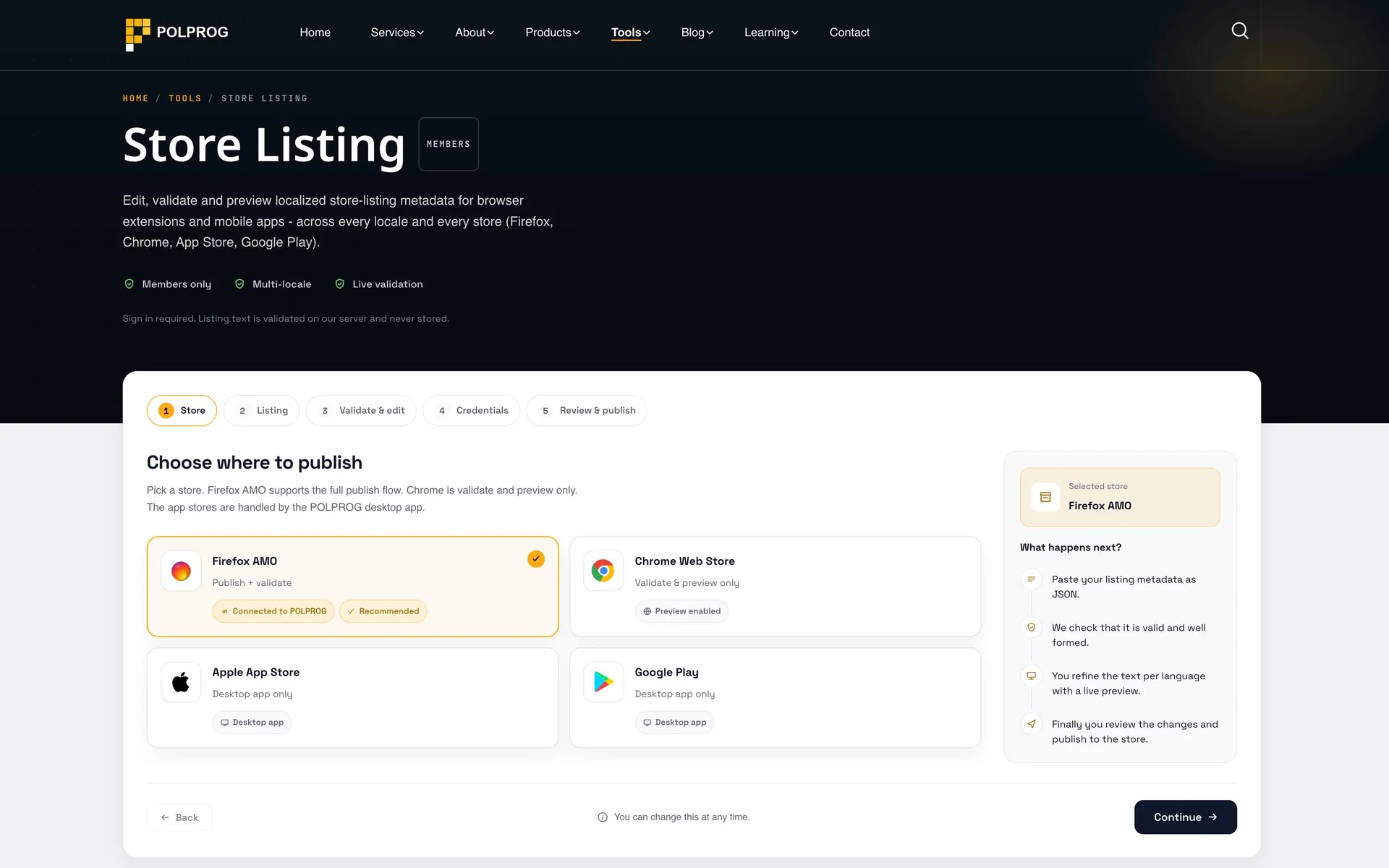
Store Listing carries browser extension and mobile app store listings across every language at once. One listing, every language, one pass instead of walking through each store console separately. The tool is available after signing in, to accounts POLPROG has granted access to.
| Store | Scope |
|---|---|
| Firefox AMOFull cycle | Fetch the current listing, diff it, publish and verify the result. |
| Chrome Web StorePartial | Validation and preview. Listing text cannot be published over the API: the name and descriptions come from the extension package, and the API exposes no text fields. |
| Apple App StoreFull cycle | Mobile apps and Safari extensions: fetch the descriptions, diff and publish. Text is written to whichever version App Store Connect holds in an editable state. |
| Google PlayFull cycle | Android apps: fetch the descriptions, diff and publish, separately per language. |
POLPROG maintains around forty store listings today: nine extensions live in parallel on Chrome, Firefox and Edge, four of them additionally as Safari extensions, plus mobile apps on the App Store and Google Play. Without a tool, fixing one sentence means as many trips through a store console as there are store and language combinations. Here it is one edit and one publish.
The second gain is less obvious: the store comparison answers whether the Edge listing still matches the Chrome one. By hand there is no way to check that other than opening both and reading.
It does not write your copy and it does not translate. It cuts the clicking, not the thinking. It also does not publish to the Chrome Web Store, which is a limit of the Google API rather than a missing feature.
The most important capabilities, explained in practical terms.
Pick a store, paste the listing JSON, validate and edit per language, enter credentials, compare and publish. The next step only opens once the previous one is complete.
Length limits for name, summary and description are counted separately for every locale. Errors appear next to the specific field, together with a character counter.
The panel beside the editor renders Markdown the way AMO will, and plain text the way Chrome will show it. You see the result before anything is sent.
Fetch the current listing from the store, compare the differences, publish the changes, and verify the saved data after the upload.
Listing text cannot be published through Google's API: the name and descriptions come from manifest.json and the _locales directory in the ZIP package, and the API has no field for them. The tool validates the content and shows the preview.
The same wizard carries iOS and Android app listings, not just browser extensions. Name, short description and full description go through separately per language, with the store state fetched and diffed before publishing. Safari extensions follow the same path, because in the App Store they are described by an app listing.
A side by side view of your local version against the one currently published, language by language, highlighting the fields that actually changed.
Store API keys are kept in sessionStorage, sent over HTTPS, never written to the server, and cleared when you sign out.
The tool is visible only to signed-in accounts that POLPROG has granted access to. Creating an account does not open it automatically.
The same validation rules run in the web tool and in the POLPROG desktop application. Validation happens on the server, and listing content is not stored.
A clear path from the official source to your first successful workflow.
Use one of the official links available for your device or browser.
Follow the store instructions or open the web application. No third-party installers.
Review the options, choose your preferences and start with the core workflow.
A transparent look at the core technologies used to build and maintain this product.
The tool works only after signing in, on an account that has been granted access. Listing text is validated on the POLPROG server and is not kept there: it reaches no database, no log and no disk. Your working draft and the store credentials live only in the browser session and disappear when you sign out.